[Unity] 開發 Windows Store App 相關資源整理

[你需要什麼?]

Windows 8 或以上版本:

Free 90 days eval, or

– 若符合學生資格或成立五年以下新創公司,可分別透過 DreamSparkBizSpark 取得免費高階版本

– MSDN 訂戶可免費下載

Unity 4.2 或以上版本:

Free 30 days trial (Pro included)

Visual Studio 2012 或以上版本:

Free Express version, or

– 若符合學生資格或成立五年以下新創公司,可分別透過 DreamSparkBizSpark 取得免費高階版本

– MSDN 訂戶可免費下載

Windows 市集開發人員帳戶 (上架 Windows Store 時需要)

開立 Windows 市集開發人員帳戶 (個人帳戶: US$19,公司帳戶: US$99), or

– 若符合學生資格或成立五年以下新創公司,可分別透過 DreamSparkBizSpark 取得一年免費帳戶

– MSDN 訂戶亦有一年免費帳戶

[有正式文件或線上資源可參考嗎?]

– Unity3D/Microsoft 的官方文件請見 Porting tips for Windows Store (813 KB)

– 線上課程 (英文) Porting Unity games to Windows 8.1 & Windows Phone 中的 Module 2~3 特別討論到注意事項及 Duel Runtime environment ,建議一聽。

[開發 Windows Store 或 Windows Phone App 的流程?]

可以簡單分為三步驟:

image 

其中與 iOS 最大的不同是第二點,也就是需要透過 Visual Studio 2012 或以上的版本來進行編繹。

Unity 專案在 “Build And Run” 之後會產生一個完整的 Visual Studio solution,其中的 .sln 檔可以用 Visual Studio 開啟。

imageimage

開發者可以直接編譯成可上傳 Store 的 packages,或是透過 Visual Studio 進行進一步的修改。

Visual Studio 提供完整的模擬器進行測試,不一定要將 App 裝在實體機器上測試。

image

[我遇到 “error CS0103: The name ‘xxxx’ does not exist in the current context”]

其中的 ‘xxxx’ 可能是 File, FileStream, HashTable, Dictionary 等等。解法及原因說明請參考 [Unity Game to Windows Store] Compile error- missing namespaces/classes (中文)

[我遇到 DEP0700 編譯錯誤怎麼辦?]

image

錯誤訊息為:

Error: DEP0700: Registration of the app failed. Windows cannot install package “你的專案名” because the package requires architecture ARM, but this computer has architecture x64 (0x80073cf3).

其原因是 Unity 預設將它的 package 包成可在 ARM, x86 及 x64 不同平台執行的版本,而您的 Visual Studio 顯然並不是在 ARM 機器上跑的,所以會產生這個錯誤。

解決方法是,至 Visual Studio 的 Build –> Configuration Manager 中選擇 x86 即可。

image

[我可以在 Visual Studio 上 debug 嗎?]

目前支援對 C# scripts 作偵錯。詳細步驟請見: http://docs.unity3d.com/Documentation/Manual/windowsstore-debugging.html

[那我是用 JavaScript 或 Boo 怎麼辦?]

這是許多既有 Unity 專案會遇到的問題,各位可參考這篇文章Creating a Unity Game for Windows 8中的留言,也就是可以善加使用 ILSpy (http://ilspy.net/) 這個工具。

“The major challenge for existing apps is porting the code from JavaScript to C#. Most of the examples and existing code base (plugin’s etc.) are JavaScript. However there is a very good and free tool called ILSpy that will examine the compiled assembly and decompile it into C#. Private variables will lose their names, some of the code will be hard to read, however it does work and in about 1-3 hours of work you should be able to port your existing Unity Android/iOS game to Windows Phone or Store. This is by far easier than writing a new game in Visual Studio.

Of course the reverse is also true, write your game in Unity for WP8 or W8 and easily (in minutes) port it over to Android iOS”

[有支援我常用的 Plug-ins 嗎?]

以很受歡迎的 Prime31 為例,目前已有 Windows 8 及 Windows Phone 8 的版本,可以持續使用。

image

[可以教我怎麼註冊 Windows Store 及 Windows Phone 市集嗎? ]

以下兩份文件包含註冊以及上架你的 App 的詳細步驟,以及可能遇到的問題說明:

[其他]

Unity 官方網站亦整理了許多 Windows Store 及 Windows Phone 8 的 FAQ 等相關文件如以下:

延伸閱讀: 我的第一個 Unity3D Windows Store App

(Last update: 2014/1/17)

Windows 8.1 上市之後,我還能繼續開發 Windows 8 App 嗎?

答案是可以的! 您可以繼續使用 Visual Studio 2012 開發且上架 Win8 App,或是使用 Visual Studio 2013 開發 Win8.1 後上架;最棒的是,Visual Studio 2012 及 Visual Studio 2013 是可以同時安裝在 Windows 8.1 上的!
至於 Win8 App 及 Win8.1 App 在不同版本作業系統上之相容性如何呢? 請見下表:
image
也就是所有的 Win8 Apps,都能直接在 Win8 及 Win8.1 機器的市集中下載並且順利運行;然而 Win8.1 Apps ,則只能運行在 Win8.1 的機器上。
以這樣的角度看來,繼續開發 Win 8 App 以能同時在 Win8 及 Win8.1 的機器上運行,就會是很明智的作法,因為雖然2013/10/18起,所有的 Windows 8 就可以免費經由 Windows Store 升級為 Windows 8.1,但在這完全轉移的過程中, Win8 Apps 能同時讓最多的使用者有機會下載使用。
那是不是就沒有開發 Win8.1 Apps 的理由了呢? 有兩點考量給各位參考。
第一,就是 Win8 App 在不更改程式碼的情況,只要重新 compile 成 Win8.1 App,在效能上就會有很大進步:
image
第二,當然就是 Win8.1 加強或新增的 APIs 了。下表可以看到這些改變:
image
以上這些改變中,綜合過往一年來 Win8 App 開發合作夥伴的反應,前 3 名最有感的改變是:
1. WebView 控制項: 現在可以直接存取本地 Web 內容,甚至執行其中的 JavaScript 了! (範例: http://code.msdn.microsoft.com/XAML-WebView-control-sample-58ad63f7)
image
2. 利用全新的 RenderTargetBitmap 物件,就可以將整個 UIElement (如: Gird) 存成圖檔,以作出如 Instagram, Instaweather 等效果: (說明: http://msdn.microsoft.com/zh-tw/library/windows/apps/bg182878.aspx)
 image
3. 終於內建支援 PDF rendering,再也不用花錢購買第三方軟體套件了! (中文詳解: 在Windows 8.1 App中輕鬆完成PDF渲染)

image

小結: 在 Windows 8.1 上市之後,要開發一個 Windows Store App ,可以有以下 3 種選擇:
A. 僅作成 Win8 App: 優點是可在 Win8/8.1 機器中看到,但效能會較差且無法使用 8.1 新增 APIs.
B. 僅開發 Win8.1 App: 可使用 8.1 APIs 且在效能有進步,但無法在 Win8 機器中運行。
C. 同時開發 Win8及8.1的版本: 可使用新功能且效能好,又可同時在 Win8/8.1 機器上運行 (但增加維護成本)
未來的 Windows Store 的上傳畫面,也因這些可能的選擇而作了改變,以下是 packages 上傳畫面:
image
相同的 App 在 Win8/8.1 的資訊填寫畫面:
image
延伸閱讀: Windows 8.1 Preview:開發人員適用的新 API 和功能

繼 Unity 之後,Cocos2d-x 也正式支援 Windows 8 及 Windows Phone App 了!

Cocos2d 也是一個廣為許多遊戲開發者使用的遊戲引擎,在這個版本中除了開始支援 Windows Store App 及 Windows Phone App 之外,也將支援第一個穩定的 CocoStudio v1.0 版本:

image

來源: http://www.cocos2d-x.org/wiki/Release_Notes_for_Cocos2d-x_v22

下載 cocos2d-x-2.2.0.zip

相關內容: 我的第一個 Unity3D Windows Store App

我的第一個 Unity3D Windows Store App

Unity 自4.2版起即開始正式支援 Windows Store App 及 Windows Phone 8,而且這兩個 add-ons 不但在 Unity Pro 上是免費的,同時在free version 的 Unity 上也是內建的免費功能!
image
========================= 分隔線 =========================
以下我即以 free version 的 Unity,一步一步建制一個簡單 Windows Store App 讓大家參考。
首先在 Unity 中新增專案,不要匯入任何的packages。
image
先在 Hierarchy 中建立一個 Cube,
image
然後在 Inspector 中改變其 Rotation 及 Scale 如以下:
image
現在這個 Cube 看起來是黑黑的一團,所以我們加點光給它: 到 Hierarchy 中建立一個 Directional Light:
image
接下來我們寫一行 C# code 讓這個 Cube 會轉。先到 Hierarchy 中選擇 Cube 物件後,在其 Inspector 畫面中往下拉,選 Add Component –> New Script –> CSharp 後,按下 Create and Add:
image
這時在 Project 中的 Assets 中會出現剛建立好的 C# script:
雙點這個 script 會開啟 MonoDevelop 來編輯, 在 Update() 方法中加一行:
// Update is called once per frame
void Update () {
transform.Rotate(Vector3.up, Time.fixedDeltaTime * 200.0f);
}
存檔後回到 Unity,按下上方的 Play 符號就會看到 Cube 旋轉的樣子。
接下來我們想在旋轉的 Cube 上新增一些花樣: 至 Project 的 Assets 中按右鍵: Import Packages –> Particles, 然後直接按 import
imageimage
完成後點開 Assets –> Standard Assets –> Particles,然後選擇 Smoke,把 Fluffy Smoke 拖拉到 Hierarchy 下,就會看到 Cube 在冒煙。
image
如以上步驟,再選擇 Fire 後,把 Flame 拖拉到 Hierarchy 下,就會看到 Cube 冒出火來;你也可以 Play 看看效果。
image
接下來,要把它建制成 Windows Store App了!
在 File –> Build Settings…中,選擇 Windows Store App –> XAML C# Solution,然後 Build And Run 後即可。
image
建制完畢後會在資料夾中看到完整的 Windows Store App solution:
image
我們以 Visual Studio 2012 開啟 .sln 檔,若直接編譯的話會看到以下錯誤:
image
錯誤訊息為:
Error: DEP0700: Registration of the app failed. Windows cannot install package “你的專案名” because the package requires architecture ARM, but this computer has architecture x64 (0x80073cf3).
其原因是 Unity 預設將它的 package 包成可在 ARM, x86 及 x64 不同平台執行的版本,而您的 Visual Studio 顯然並不是在 ARM 機器上跑的,所以會產生這個錯誤。
解決方法是,至 Visual Studio 的 Build –> Configuration Manager 中選擇 x86 即可。
image
這是順利執行之後的預設 splash screen:
image
跑起來的樣子如下
image

延伸閱讀: 繼 Unity 之後,Cocos2d-x 也正式支援 Windows 8 及 Windows Phone App 了!

Visual Studio 2013 台灣發表會上demo的Windows Store App

這個 Windows Store App 是連結了 Eric 上一場 Demo 建立出來的Web API (JSON格式),將現場人員的留言撈出來的小範例。

程式碼下載: http://sdrv.ms/18oi37y

image

程式碼的部份很簡單,撈取 JSON URI 資料後存為 JsonArray,以 for 迴圈填入 ListView 即可:

private async Task GetJSON()

{

    try

    {

        progressRing.IsActive = true;

        listView.Items.Clear();

        string strURI = "http://twvs2013launch.azurewebsites.net/api/message";

        var http = new HttpClient();

        var response = await http.GetStringAsync(new Uri(strURI));

        jsonValue = JsonValue.Parse(response.ToString());

        jsonArray = jsonValue.GetArray();

        arraySize = jsonArray.Count;

        this.listArray = new string[arraySize];

        textBox.Text = arraySize.ToString();

        for (i = arraySize – 1; i >= 0; i–)

        {


            listView.Items.Add(jsonArray[i].GetObject().GetNamedValue("time").Stringify() + " "

                                + jsonArray[i].GetObject().GetNamedValue("name").Stringify() + ": "

                                //+ (jsonArray[i].GetObject().GetNamedValue("message").Equals(null)?jsonArray[i].GetObject().GetNamedValue("message").GetString():"null"));

                                + jsonArray[i].GetObject().GetNamedValue("message").Stringify());

        }

        progressRing.IsActive = false;

    }

    catch(Exception e)

    {

        progressRing.IsActive = false;

        new Windows.UI.Popups.MessageDialog("網路不通??").ShowAsync();

    }

}

你參加 App 怪獸爭霸戰了嗎?

這是一個以你寫的 App 來互相對戰的比賽。只要是 2013/07/01 後上架的 Windows Store App 或是 Windows Phone Apps,都能免費登錄參加對戰。
當然,比賽就要有獎金的! 只要你的 App 達到 100 個下載數,就會由「士兵」進階為「將軍」,馬上有機會抽中1萬元現金! 而且你 App 所屬軍團勝利的話,還有可能拿到 10 萬大獎! https://aka.ms/appbattle
來不及寫 App 嗎? 這個活動共會辦三個回合,一直到明年四月才結束;不過,應該是愈早參加機會愈大喔!
image
話說,那不會寫 App 的人怎麼辦呢? 因為這是一個協助各 App 衝人氣的活動,所以不會寫 App 的人,只要參加並下載 App,也有可能抽到1萬元!
image
最後,不知大家有沒去讀讀故事發展呢? 這個怪獸爭霸戰的目的,其實是要拯救一位公主,此公主即是藍澤光,小光公主是也~
image

[Windows 8.1] 升級Windows 8 App到Windows 8.1

本文章的內容來自2013/6月在舊金山舉行的BUILD 2013大會。
原始投影片及錄影檔請見: Upgrading Windows 8 apps to Windows 8.1
image
首先這堂課的內容是如何使用Visual Studio來針對既有的Windows 8 App升級為Windows 8.1的版本,無論是以XAML或HTML寫的Apps。但不涵蓋C++。
image
為何要升級我的Windows 8 App呢? 使用者由Windows 8升級為Windows 8.1之後,仍然能夠在Store中看到所有的 Windows 8 Apps;亦即,您已上架到Windows 8 市集中的Apps,在Windows 8.1的環境中仍然能被找到、被購買、也能完全相容且正確的執行。而且,若您的Apps升級到8.1之後,Windows 8的使用者即無法在Store中找到您的Apps。
所以,我們得先來衡量一下升級到8.1的好處,之後也會討論到是否要同時管理Windows 8 及Windows 8.1 版本的方法。
image
首先最重要的是,8.1在Apps的效能執行上作了非常大的改進! 在無需修改任何一行程式碼的情形下,只要retarget您的Apps到8.1,就可以感覺到效能上的大幅進步。
而您若使用了8.1的新功能,如 WinJS Scheduler, Dispose Model等的話,效能更能顯著提升、同時減少Working Set等記憶體使用量。
接下來是一段比較內建的Mail (郵件) App,在沒更改一行程式碼的情況下分別在Windows 8及Windows 8.1中執行起來的比較:
image
啟動速度較快(圖片先出來)
image
在ListView control 用手作快速的panning時,右側8.1的畫面不會有lag的情形。
image
其次,當然就是一些Windows 8.1的許多新功能了。(更多新功能的詳細說明請見BUILD 2013的錄影: https://channel9.msdn.com/Events/Build/2013)
image
而最後,也許也是最重要的,就是Windows 8.1重新改版的Store(市集)了,新的Store會特別精選具有8.1 新功能的Apps,增加您的Apps被使用者找到、下載的機會。
同時因為所有的Windows 8機器都可以免費升級到Windows 8.1,我們也預期會有許多的使用者願意直接升級。
image
請視App升級至8.1為讓您的Apps更好(better)的過程,而非只是單純的升級。
第一步驟即是regarteting您的Apps至8.1,重新編譯、執行、測試。
第二步驟是使用8.1的全新功能,讓您的Apps更好! 比如Search控制項在8.1中可以很好的利用。
第三步驟即是讓您的8.1 Apps上架Store。
image
OK 現在我有兩個不同版本的Apps了,要如何維護呢? 建議的作法是:
1. 在您所使用的Source Control軟體中,建立一個全新的分支(branch),這也是微軟內部的作法;或是
2. 拷貝整個solution再各自維護。
比較不建議的作法是維持一個單一的solution,然後在不同的projects中target到不同的Windows 版本。這種作法的缺點是,當有共用reference時,還得依據不同版本的reference給它不同的名稱,增加coding上的複雜度,也增加管理reference上的困難。
image
不同版本的Visual Studio 2013在開發及升級Windows Store Apps上的差異:
– Profession, Premium 及Ultimate版本:
1. 可以建立、編譯Windows 8.1專案
2. 可以升級Windows 8專案至Windows 8.1
3. 可以編譯Windows 8專案
– Express版本:
1. 可以建立、編譯Windows 8.1專案
2. 可以升級Windows 8專案至Windows 8.1 (但不能編譯Windows 8專案)
同時,Visual Studio 2012及Visual Studio 2013可以同時執行在同一台機器上!
image
現在來試一個Windows Blog Reader (XAML) App,這是在MSDN可以免費下載且附程式碼的範例程式
image
Visual Studio 2013 (Preview)開啟後會出現建議retarget到Windows8.1的提示,按了OK後並不會直接幫你升級。
image
你可以看到右側的各專案還是Windows 8的專案。我們可以按F5直接執行:
imageimage
看起來好像完全沒問題,但是在Windows 8.1中,使用者可以在此App所容許的最小寬度以上任意調整寬度。以下看到當使用者變換寬度時會看到有黑色留邊的現象:
image
好,接下來我們來試試升級至Windows 8.1:
image
image
image
看來是無痛升級成功了,執行之後會發現皆能正常執行,同時在使用者改變App寬度時不會有黑邊的情形發生:
image
雖然在此範例中能無痛升級,當然並非保證所有的Windows 8 Apps皆能如此輕易的完成升級,在retargeting的過程中會提示您閱讀一份文件,可以作為遇到問題時之參考。比如常見的問題是8.1使用了IE 11作為Web redering engine,這些都可能影響到相容性。
image
在另一個Windows Blogs Reader App的JavaScript版本中,也可以作同樣的升級,除了會發現在使用者改變Apps寬度時不會出現黑邊外,不同版本間的CSS會有些不同,但只要些微修改即可:
imageimage
說明至此各位已發現Windows Size是各位在升級時必需考量的重點之一。
在Windows 8中,有一個固定的Snapped View (320 pixels 寬)可讓使用者選擇。
image
而在Windows 8.1,使用者不但能在同一螢幕上同時執行最多4個Apps (包含Destop Apps),同時在寬度的選擇上也有更大的自由。
以下圖為例,中間的Weather Apps其最小的可能寬度為500 Pixels,以能完整的顯示其資訊,使用者可在此500 pixels以上的寬度間自由調整。而最右側的Reader List App,其最小則能縮至320 Pixels。
image
image
Windows 8.1再也沒有所謂的Filled View及Snapped View了!
新的作法是,所有的Apps的預設最小寬度是500 pixels,亦即使用者可以將您的App設為612, 700 pixels等寬度。而開發者則可以決定你的App的最小寬度至320 pixels。若設為320,使用者即可在320以上以至於螢幕的寬度間來更改你的App寬度。
App在執行時,使用者更改寬度後(手指離開螢幕時)會接收到一個event,開發者即可以據此event handler來設定layout。在這個步驟中,能取得Windows Size的資訊就很重要了。
以下是在manifest中設定最小寬度:
image
那到底要設多少呢? 這當然是取決於你的App是否能在某種寬度下仍能最佳顯示所要呈現的內容了。同時也要考慮到小幕尺寸的平版、以及在Portrait模式時,你的App能呈現的內容會是受限的,也需要將這些使用情境列入考量。
image
以下是HTML及XAML取得Windows Size & Orientation資訊的程式碼:
image
imageimage
image
image
image
好,假設您已經成功升級、實作了Windows 8.1的新功能並測試完畢之後,就準備好上傳您的App至Store了。
image
在您submit同一個App的過程之中,您會注意到只需要重新填寫Description (描述)、Features (新功能)及Screenshots (截圖),其他諸如App Name, Pricing, Website and support等都是相同的資訊,故不用重新填寫。
image
這裡有一個需注意的一點,同一個App若有Windows 8 及Windows 8.1的版本,則Windows 8的版本別(version numbers)不能超過8.1的版本。Visual Studio 2013會自動幫您解決或避開此問題。
好,我們來看看上傳介面吧!
image
你會看到可以在同一畫面中上傳Windows 8及Windows 8.1的package.
image
如前所述,您只要再填入Description (描述)、Features (新功能)及Screenshots (截圖)資訊即可。
延伸學習:
Beautiful Apps at Any Size on Any Screen
The fast lane for app certification
BUILD 2013 Channel 9

在註冊 Windows Store 帳號時卡住嗎? App 上傳很久還沒審核嗎? 怎麼我收到的錢不如我預期的多?

如果您有以上的疑問,或是在 Windows Store 上有任何註冊、開發、上傳、收費等其他問題,除了到論壇問問看是否已有解答之外,建議大家可直接到以下網站作詢問:

http://getsupport.microsoft.com

會得到微軟官方技術服務團隊的回答及支援!


有各種問題類型供選擇:

image

之後選擇類別,「應用程式提交和憑證」類:

image

「Windows 市集註冊和您的帳戶」類:

image

我個人最常使用的是使用 email 電子郵件,通常 24 小時內就會收到回覆。

image

與 Microsoft 對話交談 (類似 MSN 的方式,可以用中文喔!)

image:


以電子郵件詢問:

圖片1 

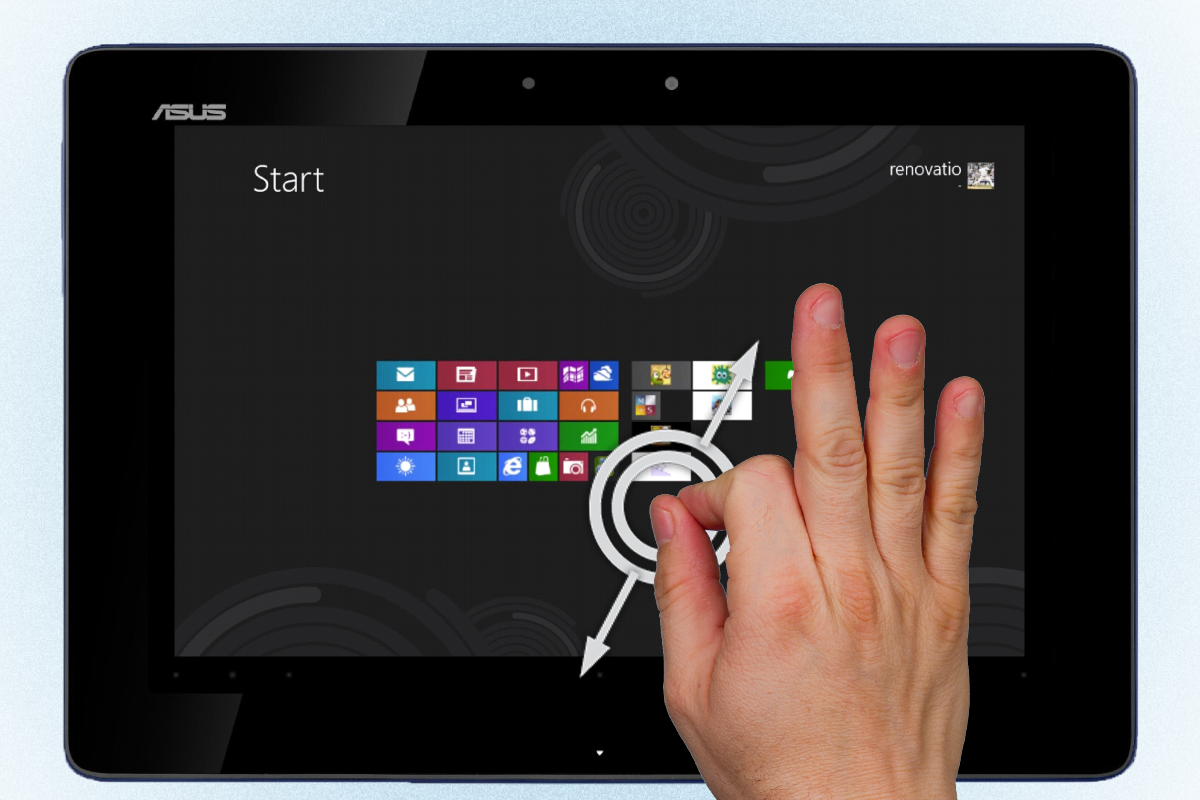
將 Semantic Zoom 加入格線 (Grid) 應用程式

SemanticZoom 控制項,可以讓使用者在兩個不同檢視 (GridView 或 ListView) 間切換。第一個會是內容的主要檢視,而第二個檢視雖與第一個檢視的內容相同,但是可以讓使用者能快速瀏覽其內容。例如,檢視通訊錄時,使用者可以放大字母,然後查看與該字母相關的名稱。

(圖片來源: http://ww1.prweb.com/prfiles/2012/06/05/9578381/Pinch-to-Zoom.png)


本篇文章的目的,是要在 Visual Studio 2012 內建的「格線應用程式 」(Grid App) 模版中,加入 Semantic Zoom 的功能。


我們先來了解一下 SemanticZoom 這個控制項的用法,在一個空白專案裡,把 SemanticZoom 拉到 Main.xaml 中來:

image

檢查一下所產生出來的 XAML 檔,可以看到它的結構很簡單,包含了兩種不同的檢視方法 (ZoomedInView 及 ZoomedIOutView),而每種檢視可以處理 GridView 或是 List View 控制項:

image


我們先來試一段簡單的程式來看看它是如何運作的,貼上以下的程式碼:

<SemanticZoom Grid.Row="1" Name="SemanticZoomData">

<SemanticZoom.ZoomedInView>

<ListView>

<ListViewItem>阿里山</ListViewItem>

<ListViewItem>陽明山</ListViewItem>

<ListViewItem>玉山</ListViewItem>

<ListViewItem>合歡山</ListViewItem>

</ListView>

</SemanticZoom.ZoomedInView>

<SemanticZoom.ZoomedOutView>

<ListView>

<ListViewItem>1</ListViewItem>

<ListViewItem>2</ListViewItem>

<ListViewItem>3</ListViewItem>

<ListViewItem>4</ListViewItem>

</ListView>

</SemanticZoom.ZoomedOutView>

</SemanticZoom>

執行的結果會如以下,使用者即可以在兩個 ListView 之間 Zoom in & out 來作切換:

image

當然以上的範例並沒有什麼實質意義,但能讓大家很快了解 SemanticZoom 的結構,及其可以產生的效果。


接下來,就要實際在 Vistual Studio 2012 內建的格線 (Grid) 應用程式模版中,加入 Semantic Zoom 的功能了。以下是我最後想呈現出來的效果:

image


1. 首先開啟「格線應用程式 (XAML)」 範本,並打開 GroupedItemsPage.xaml 檔: (之後所有的修改都僅發生在這個檔案之中)

image

GroupedItemsPage.xaml 檔:

image


2. 先來檢視一下此檔的 XAML 結構,利用左側 +, – 符號,我們可以看到此頁面的 UI 結構如下;其中的 GridView 檢視是我們要處理的部份。

image


3. 將 SemanticZoom 拉入後,複製一份 GridView 區塊,再分別放置於 ZoomedInView 及 ZoomedIOutView 的區段中: (這步驟非常重要,請特別注意其相對位置)

image


4. 由於我們是將原有的 GridView 全部複製,故需重新命名其中一個的 x:Name 值,否則會有 Compiler time error:

image


5. 請嘗試執行看看,您預期會有什麼結果呢? 由於兩個 GridView 是一模一樣的,所以你無論怎麼 Zoom in、Zoom out.看到的都會是兩個完全相同的檢視。


6. 接下來,我們就要修改其中的一個檢視囉! 由於我想作的是在第二個檢視裡,呈現 Group 名稱的大按鈕,所以我們先打開 ZoomedOutView 所處理的那個 GridView,找到 Button 區塊,新增/改變如下的幾項設定: (Margin 的間距設為30、Height="600" 、Background="BlueViolet" 及 VerticalAlignment="Center")

image


7. 再於同一個 GridView 的 ItemsPanelTemplate 區段中,加上 Visibility="Collapsed", 以令各個 Group 裡的 Item(s) 不要出現在畫面上:

image 


這樣就完成囉!

image

image


完整程式碼下載

Logo 製造機- 適用於Windows Store App 及 Windows Phone 8 App

之前曾介紹過一個 Metro Studio,可以來製作 Windows 8 App Logo,最近發現一個同樣免費、免安裝且操作更方便的工具,不但可以一次製作出適用於 Windows Store App 及 Windows Phone 8 App 的 Logo,還可以直接使

用既有的圖檔來製作。


檔案下載: http://bit.ly/storelogomaker (作者是日本微軟的員工)


操作方式超簡單! 下載解壓後,只要直接執行其 .exe 檔,然後將任一圖檔拉入中央:

image

接下來可以直接按下右上角那個「Save Icons」的按鈕,所有相對應的 Logo 圖檔就產生了! (您也可以選擇背景顏色或加框)

瀏覽一下所產生的圖檔,可以看到有各種尺寸的 Logos 供您使用:

image

以 Windows Store Apps 為例,預設是至少需要150×150 (標誌), 30×30 (小標誌), 50×50 (市集標誌) 及 620×300 (啟動顯示畫面) 等4種 Logos,而其預設檔名如以下:

image 

所以您可以在更改這些尺寸的檔名之後,一次拉入至 Assets 之中,所有的 Logos 就改動完畢了!

image

選擇全部套用:

image

搞定! 以下即是開始畫面中的樣貌:

image